 Control Tower
 Codex (CLI)
Add Control Tower to Codex as a model provider and every request Codex makes goes through your gateway: attributed to its own key, counted in the Ledger, drawn on the Airspace and subject to your gates. Codex speaks OpenAI's Responses API; Control Tower forwards it to OpenAI-compatible providers as it is and translates it for the rest, so Codex can run on Claude or Gemini models too. The same config file adds Control Tower's /mcp endpoint as an MCP server.
Quick reference
| Setting | Value |
|---|---|
| Config file | ~/.codex/config.toml |
| Base URL | http://<control-tower>:4000/v1 — with /v1 |
| Wire API | wire_api = "responses" |
| Key | an environment variable named by env_key, e.g. CONTROLTOWER_API_KEY=ct_sk_… (in your shell or ~/.codex/.env) |
| Model | any model name Control Tower serves — GPT, Claude, Gemini, an alias |
| MCP endpoint | http://<control-tower>:4000/mcp with bearer_token_env_var |
Install Codex if you haven't: npm i -g @openai/codex.
Model setup
Step 1: Create a key for Codex
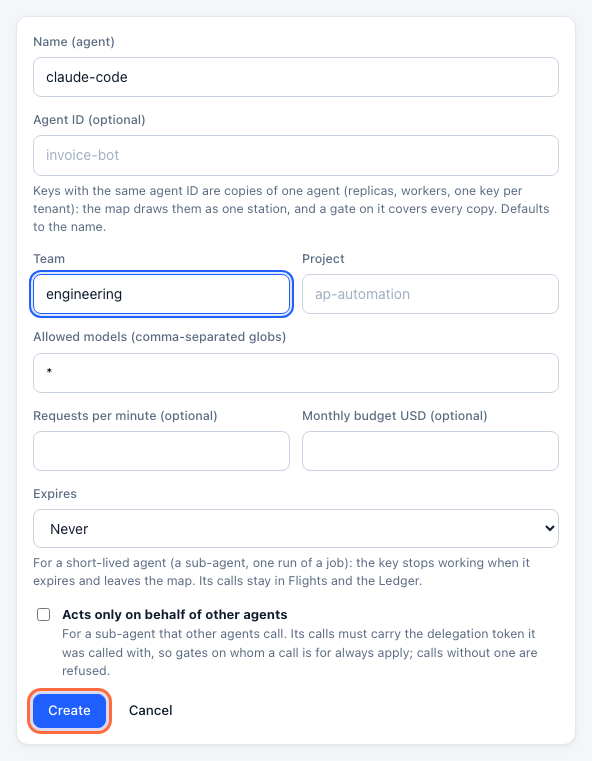
In the console, open Keys → Create key. Name it — codex, or one key per developer such as codex-dana — set its Team, and click Create.
Step 2: Copy the settings
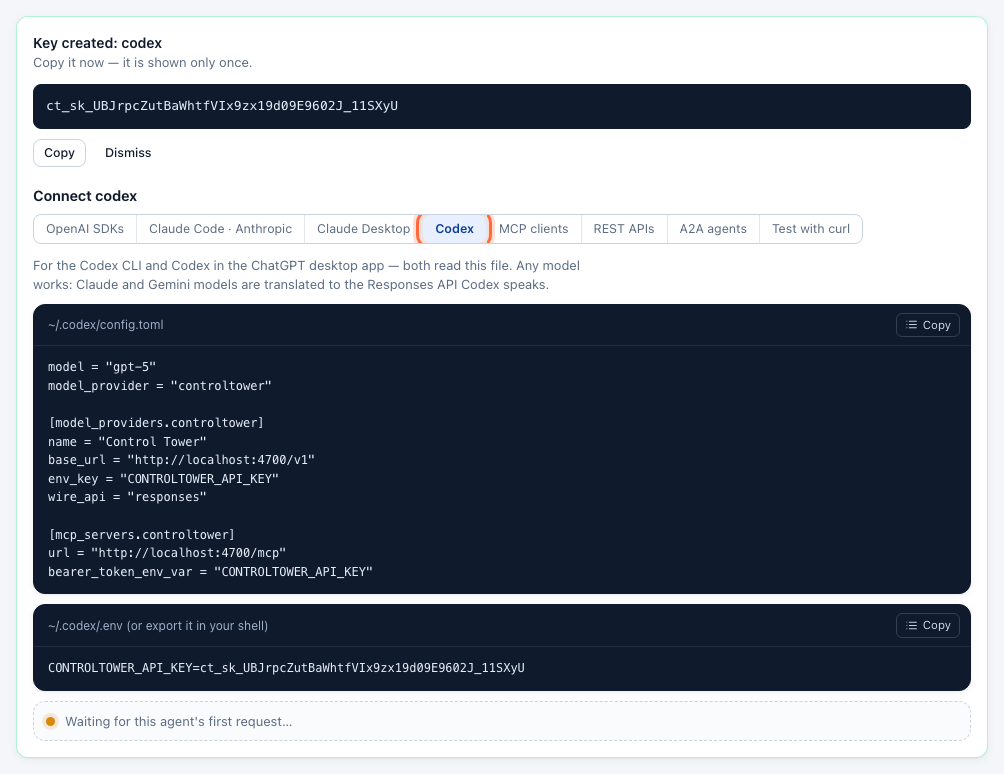
Under the new key, open the Codex tab of the Connect panel: the config file and the key line, with your address and key filled in.
Step 3: Add Control Tower as a model provider
Put this in ~/.codex/config.toml (merge it with what is there):
model = "gpt-5"
model_provider = "controltower"

[model_providers.controltower]
name = "Control Tower"
base_url = "http://localhost:4000/v1"
env_key = "CONTROLTOWER_API_KEY"
wire_api = "responses"
and give Codex the key, either in the shell that starts it or in ~/.codex/.env:
export CONTROLTOWER_API_KEY=ct_sk_…model can be any name Control Tower serves. Claude and Gemini models work too — Codex's Responses API calls are translated for them — and Codex prints a harmless warning that it has no built-in metadata for a model it doesn't know. Switch per run with codex -m claude-sonnet-4-5.
Step 4: Check it works
codex exec "Which gateway are you going through?"
codex exec -m claude-sonnet-4-5 "Which gateway are you going through?"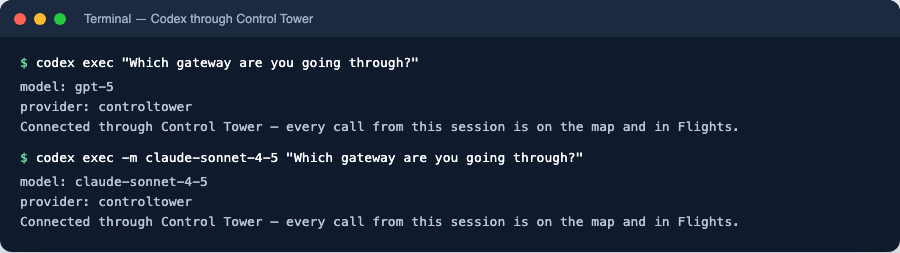
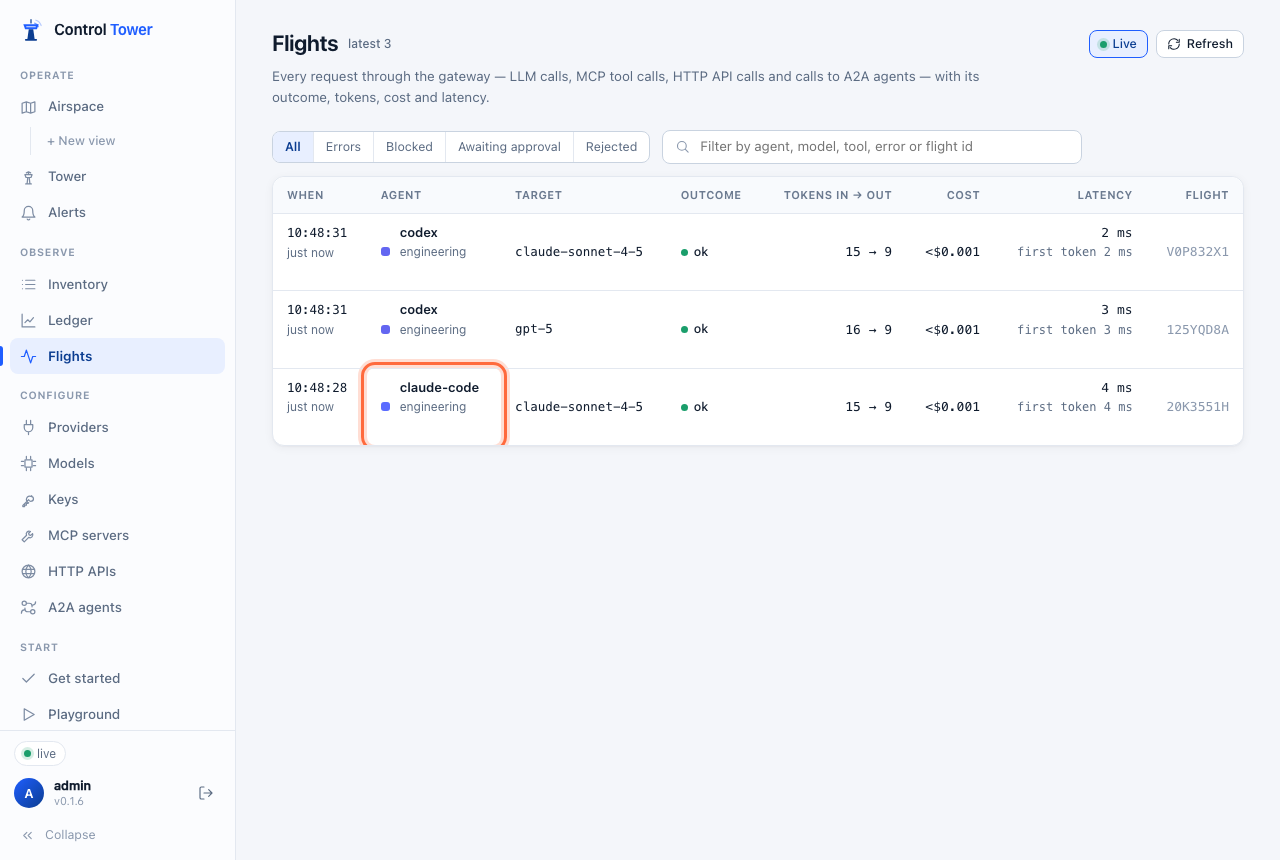
The key's Connect panel turns green, and both requests are in Flights under the key's name, as responses calls:
Start an interactive session with codex.
MCP setup
Step 1: Add Control Tower as an MCP server
In the same ~/.codex/config.toml:
[mcp_servers.controltower]
url = "http://localhost:4000/mcp"
bearer_token_env_var = "CONTROLTOWER_API_KEY"
It uses the same key as the model, so tool calls and model calls are one agent on the map. Tools are named <server>__<tool>; a key sees only the tools it may use. To add one tool server only, use its own endpoint, http://localhost:4000/mcp/<slug>.
Step 2: Check the connection
codex mcp list
In a Codex session, /mcp lists the tools Control Tower offers this key.
Verify on the map
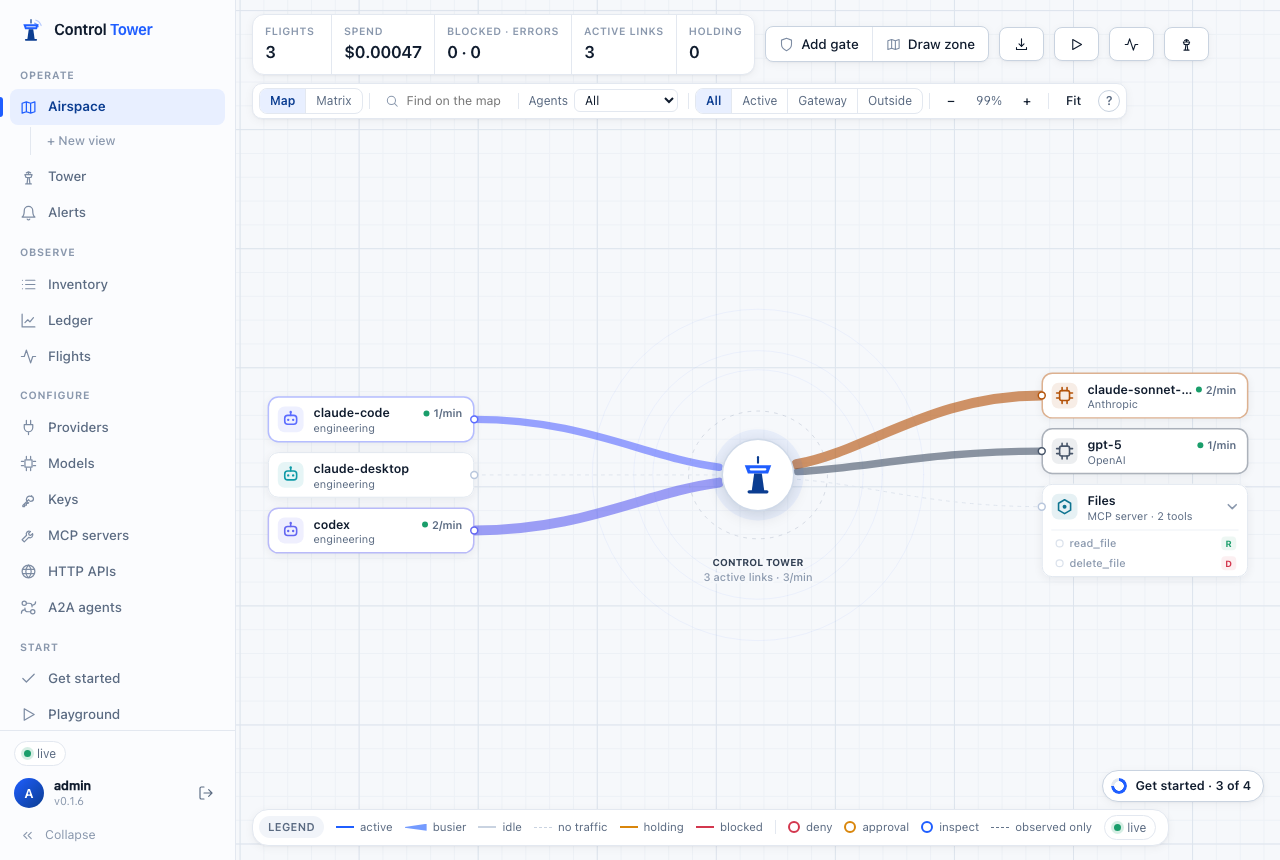
codex has a line to each model it used. Drag from it to a model or tool to put a gate on that path.
Troubleshooting
| Symptom | Cause | Fix |
|---|---|---|
Reconnecting… 1/5 then connection errors | Control Tower isn't reachable at base_url | Check the host and port, and that base_url ends in /v1 |
401 invalid_api_key | The key isn't in Codex's environment | Export CONTROLTOWER_API_KEY in the shell that starts Codex, or put it in ~/.codex/.env |
404 model_not_found | No connected provider serves that model name | Use a model Control Tower serves (Models), or connect the provider |
| Requests don't appear in Flights | Codex is using its default provider | Make sure model_provider = "controltower" is at the top level of the file, not inside a table |
400 mentioning previous_response_id | Server-side conversation state, which only OpenAI keeps | Codex sends the full conversation by default; don't turn on response storage for this provider |
codex mcp list shows the server but a session has no tools | The key may not use those tools | Check the key's allowed tools (allowed_mcp) |
More in Troubleshooting.
Next steps
- Codex in the ChatGPT desktop app — the same file
- Keys, budgets & rate limits — a budget per developer
- Airspace, gates & approvals — approval before Codex runs a destructive tool