 Control Tower
 Codex (ChatGPT desktop)
Codex in the ChatGPT desktop app reads the same configuration as the Codex CLI, ~/.codex/config.toml. Add Control Tower there as a model provider and every Codex task in the app goes through your gateway: attributed to its own key, counted in the Ledger, drawn on the Airspace and subject to your gates. The same file adds Control Tower's /mcp endpoint as an MCP server.
Quick reference
| Setting | Value |
|---|---|
| Config file | ~/.codex/config.toml — shared with the Codex CLI |
| Base URL | http://<control-tower>:4000/v1 — with /v1 |
| Wire API | wire_api = "responses" |
| Key | CONTROLTOWER_API_KEY=ct_sk_… in ~/.codex/.env — read by the app and the CLI alike |
| Model | any model name Control Tower serves — GPT, Claude, Gemini, an alias |
| MCP endpoint | http://<control-tower>:4000/mcp with bearer_token_env_var |
Model setup
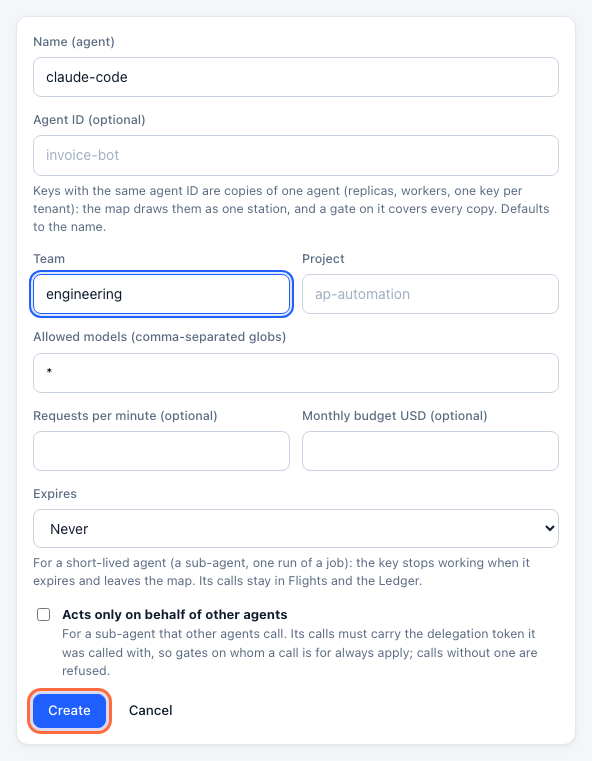
Step 1: Create a key for Codex
In the console, open Keys → Create key. Name it — codex-desktop, or one key per person — set its Team, and click Create.
Step 2: Copy the settings
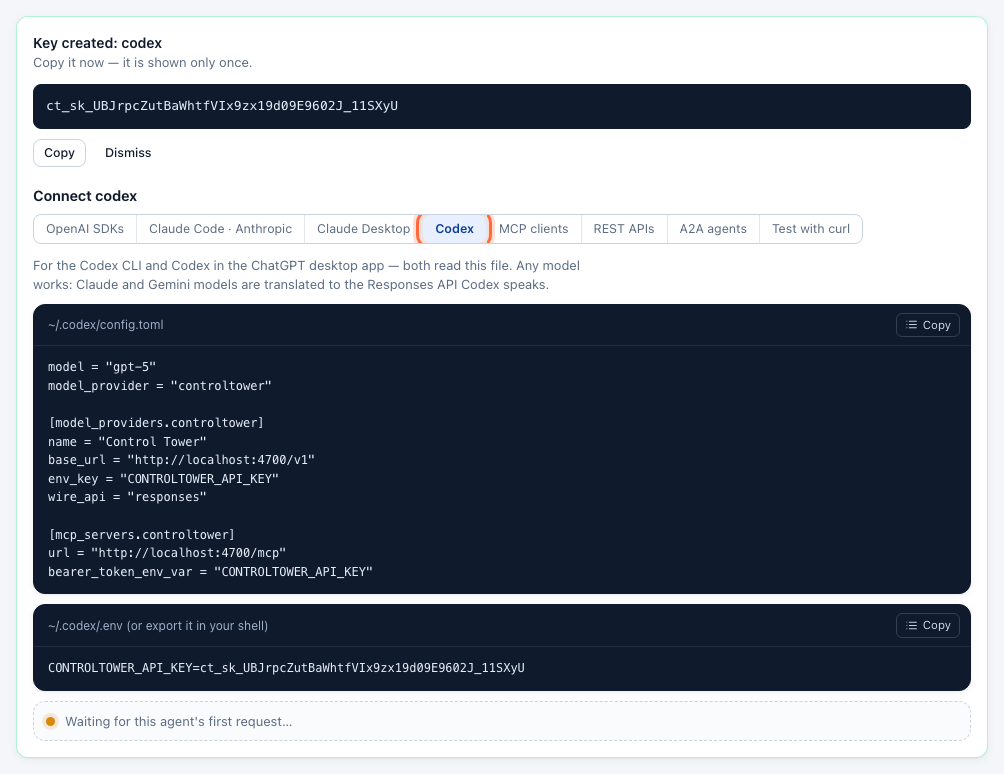
Under the new key, open the Codex tab of the Connect panel.
Step 3: Add Control Tower as a model provider
Open ~/.codex/config.toml — from the app's Codex settings, or in any editor — and add:
model = "gpt-5"
model_provider = "controltower"

[model_providers.controltower]
name = "Control Tower"
base_url = "http://localhost:4000/v1"
env_key = "CONTROLTOWER_API_KEY"
wire_api = "responses"
Put the key in ~/.codex/.env, where Codex reads it at start-up:
CONTROLTOWER_API_KEY=ct_sk_…~/.codex/.env is the dependable place for the key: Codex reads it at start-up whether it runs in the app or the CLI, however the app was opened.
model can be any name Control Tower serves; Claude and Gemini models work too, translated from the Responses API Codex speaks — MCP tools included.
Step 4: Start a Codex task
Quit and reopen the ChatGPT app so it reads the file, and switch to Codex. The provider's name, Control Tower, shows at the bottom of Codex's sidebar. Start a task.
Step 5: Check it works
The key's Connect panel turns green on the first request, and the task's requests are in Flights under the key's name:
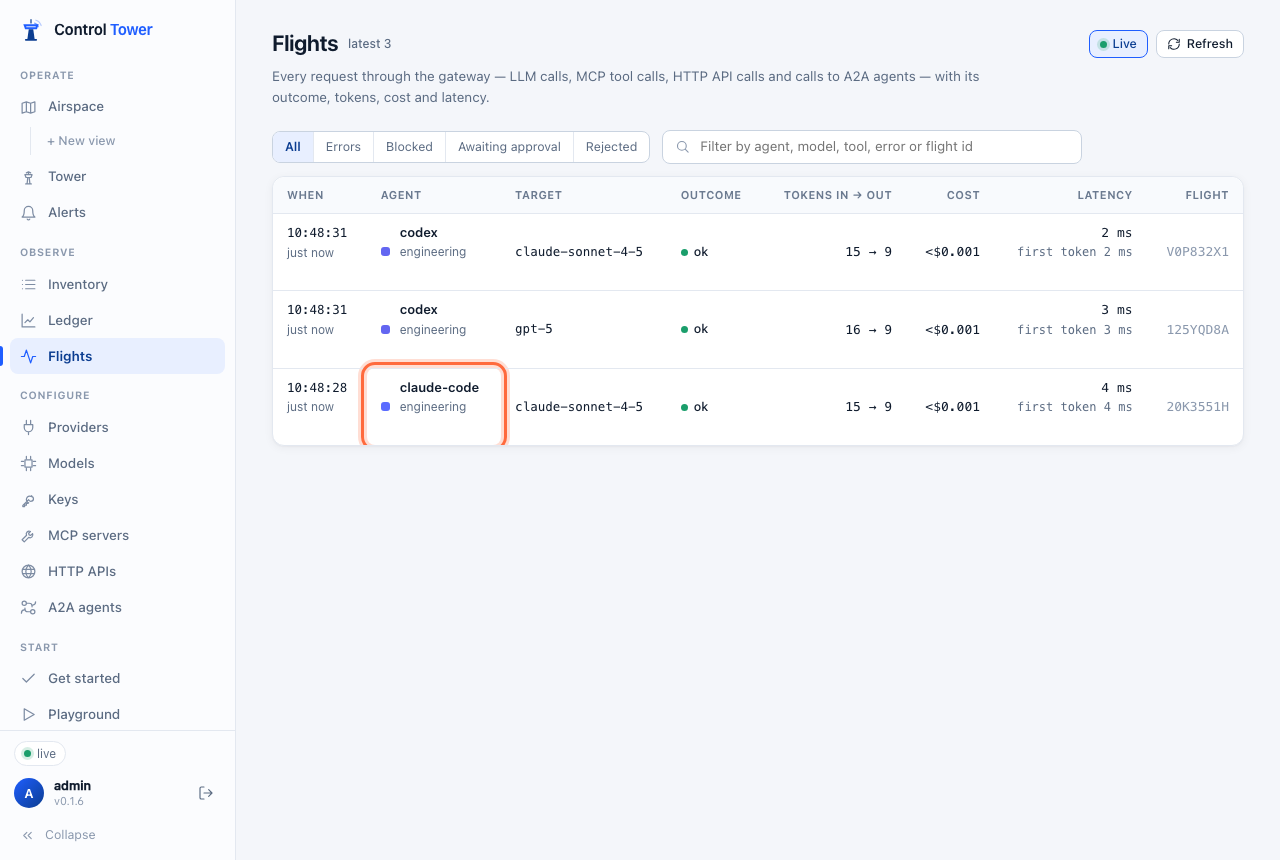
Besides the model you chose, the app makes a call per new chat to a model of its own, gpt-6-luna, and it appears in Flights beside the task. If Control Tower can't serve it — no provider for it, or a gate — the task is unaffected, but the app retries: about five failed calls per chat, in Flights and on the map. Serve it with an alias named gpt-6-luna pointing at a small, cheap model.
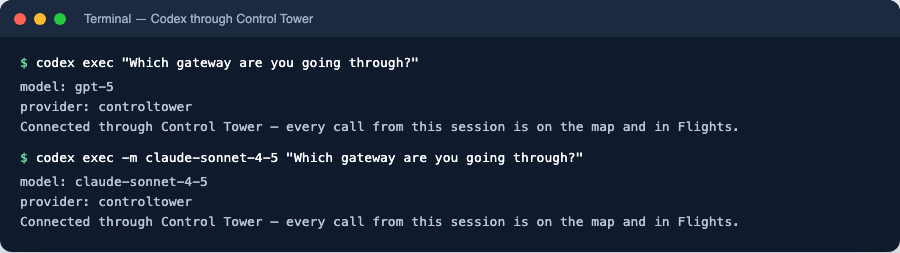
The same configuration, run from the Codex CLI, answers like this — a quick way to check the file before opening the app:
MCP setup
Step 1: Add Control Tower as an MCP server
In ~/.codex/config.toml:
[mcp_servers.controltower]
url = "http://localhost:4000/mcp"
bearer_token_env_var = "CONTROLTOWER_API_KEY"
The app can write this for you: Settings → Plugins → MCPs → Add, with the URL and CONTROLTOWER_API_KEY as the Bearer token env var.
Step 2: Check it's enabled
Reopen the app; controltower is listed and switched on under Settings → Plugins → MCPs. Codex offers the model the tools this key may use, named <server>__<tool> (files__read_file). Try a read-only tool first: the chat shows the call (Files read file) and lists controltower under Sources, and the call is in Flights under the key. codex mcp list in a terminal shows the same server:

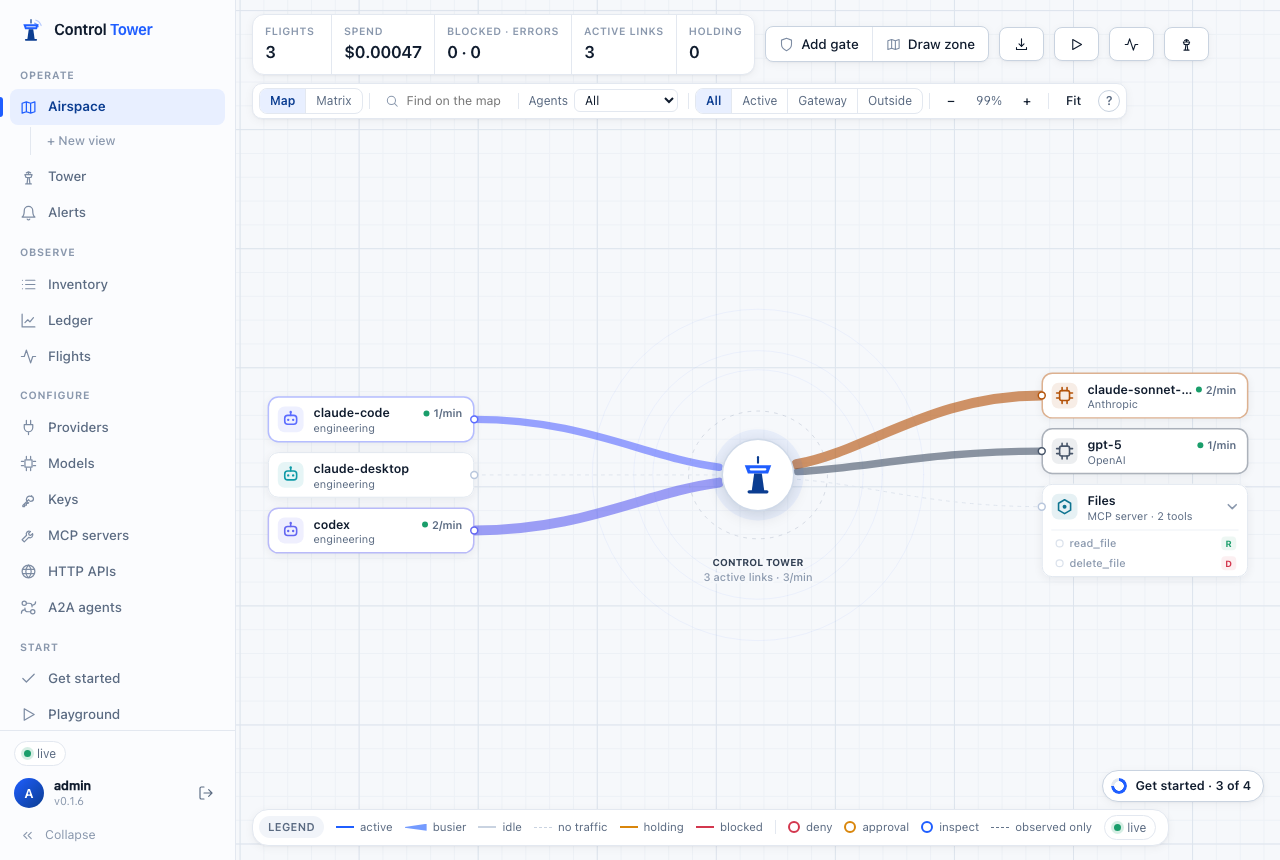
Verify on the map
Troubleshooting
| Symptom | Cause | Fix |
|---|---|---|
401 invalid_api_key | The app doesn't have the key | Put CONTROLTOWER_API_KEY in ~/.codex/.env and reopen the app |
| Tasks don't appear in Flights | The app hasn't reloaded the file, or model_provider is inside a table | Quit and reopen the app; keep model_provider at the top of the file |
| Connection errors | Control Tower isn't reachable at base_url | Check the host and port, and that base_url ends in /v1 |
404 model_not_found | No connected provider serves that model | Use a model listed under Models, or connect its provider |
The Codex CLI page has more; they share the file.