 Control Tower
 Laptops: Claude Code, Claude Desktop, Codex and Copilot CLI, rolled out by MDM
Enterprise: laptop sign-in needs a Control Tower Enterprise license.
Put Control Tower in front of the AI tools on your people's computers. IT rolls it out with Jamf, Intune, Kandji or Group Policy. Each person signs in once, through your single sign-on, and from then on:
- every model call and MCP tool call from Claude Code, Claude Desktop and Codex goes through your gateway;
- the call is made as a key you choose, so that key's models, tools, limits, budget and gates apply;
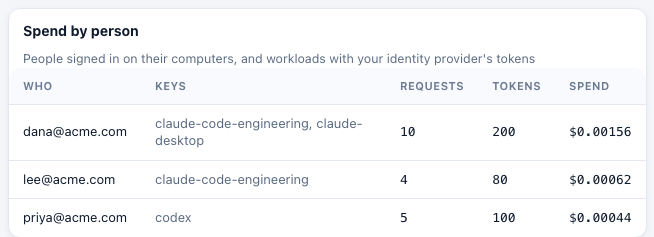
- each call is recorded as that person's in Flights, exports and the Ledger (Spend by person).
No shared key is handed out: nothing secret is in the files you deploy. People get short-lived tokens, and you can sign out any computer at once.
People sign in one of two ways: with Control Tower (they approve their computer in its console), or with your identity provider directly (Okta, Entra ID…), so they need no Control Tower account. To make sure every computer uses Control Tower and nothing else, and to check that it does, see Enforcing the gateway on every computer. For the rollout from both sides (the team running Control Tower, and an employee opening Claude for the first time), see Rolling it out.
How it works
IT deploys a small helper, ct-auth, plus each tool's managed settings. The settings point the tool at Control Tower and tell it to ask ct-auth for its credential.
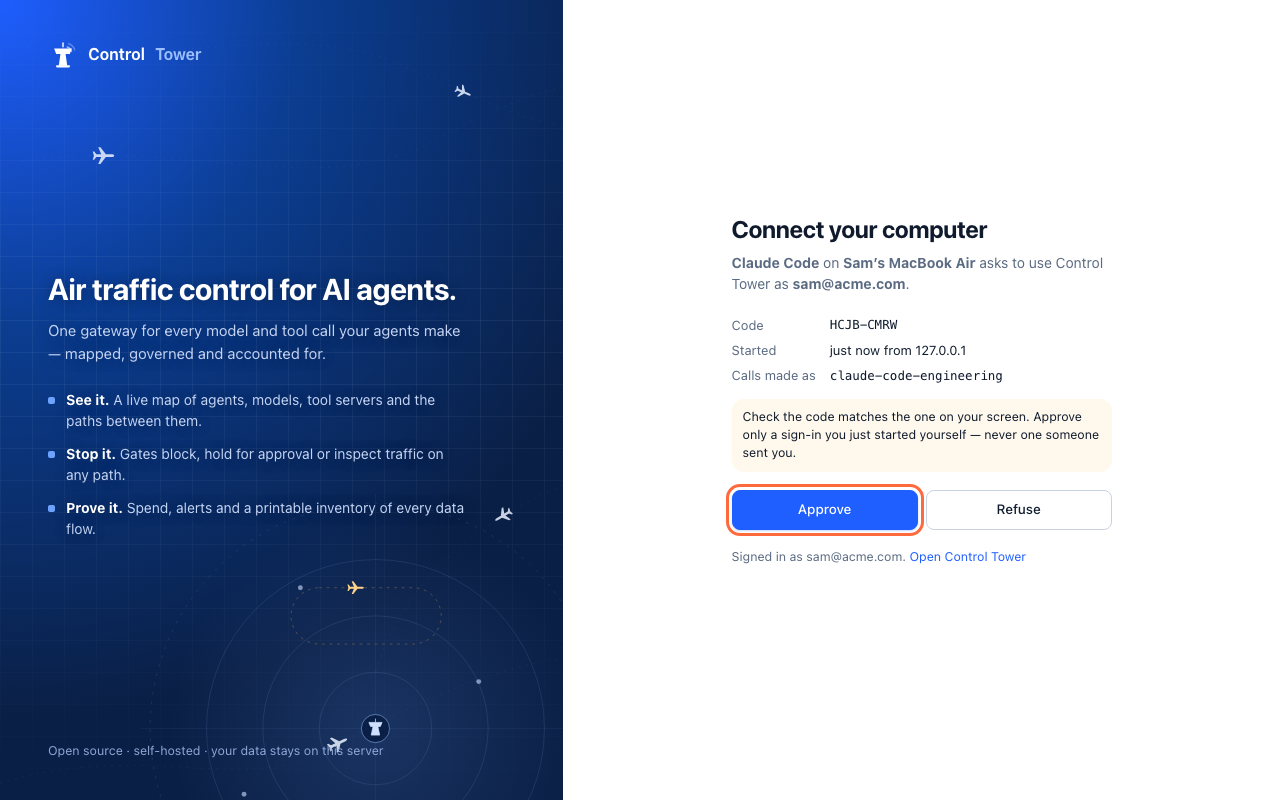
The first time someone uses the tool, ct-auth opens their browser at Control Tower's Connect your computer page. They sign in as usual (single sign-on, or a password), check the code, and approve.
ct-auth keeps a refresh token in the computer's keychain (macOS), or in a file only the person can read (Linux), or encrypted for them with DPAPI (Windows). It hands the tool an access token that lasts an hour.
Each new access token is checked first: the sign-in hasn't been revoked, the person is still active, and a rule still covers them. Tokens are signed, so the gateway checks them without a database lookup.
The sign-in is the standard OAuth device flow (RFC 8628), like gh auth login. It works with any identity provider Control Tower's single sign-on supports, OIDC or SAML, with no app registration for the laptops.
Or skip Control Tower's sign-in: with your identity provider chosen under Laptops › Roll it out, ct-auth runs the same device flow against Okta or Entra ID itself and hands the tools its ID tokens, which Control Tower checks through a trusted issuer under Agent identity. Its rules (from groups to keys) pick the key, and people need no Control Tower account. Setting it up: Signing in with your identity provider.
Set it up
1. Keys and rules
Create a key for each tool, or one for everything. Give each key the models it may use, its MCP tools, a budget and rate limits, as for any agent (Keys). Give the keys an agent ID such as claude-code, and the Airspace draws everyone's Claude Code as one station.
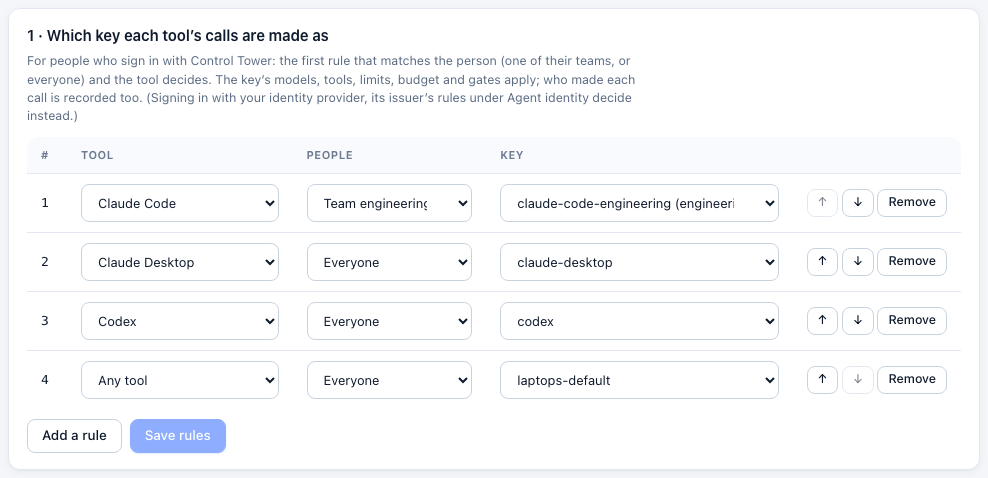
Then open Laptops and add rules. A rule says which key a tool's calls are made as, for one team or for everyone. The first rule that matches the person and the tool decides. For example:
| Tool | People | Key |
|---|---|---|
| Claude Code | Team engineering | claude-code-engineering |
| Claude Desktop | Everyone | claude-desktop |
| Codex | Everyone | codex |
| Any tool | Everyone | laptops-default |
Rules apply at each computer's next token, so within the hour. Someone no rule covers can't approve a sign-in: the page tells them why.
People need to be able to sign in to the console to approve their computer. With single sign-on, map the group that should have the tools to the member role (single sign-on). Members see only their teams' agents. Each person who signs in through single sign-on uses a seat, as for any other sign-in.
2. The address laptops use
Laptops must reach Control Tower over https. Set CT_PUBLIC_URL to that address (for example https://ai.example.com) so the links ct-auth shows point there.
3. Try it on your own computer
curl -fsSL https://ai.example.com/device/ct-auth.sh -o ct-auth && chmod +x ct-auth
./ct-auth login --url https://ai.example.com --client claude-code
Then point Claude Code at it by hand: ANTHROPIC_BASE_URL=https://ai.example.com, and "apiKeyHelper": "/path/to/ct-auth token --client claude-code --url https://ai.example.com" in ~/.claude/settings.json.
4. Download the rollout files
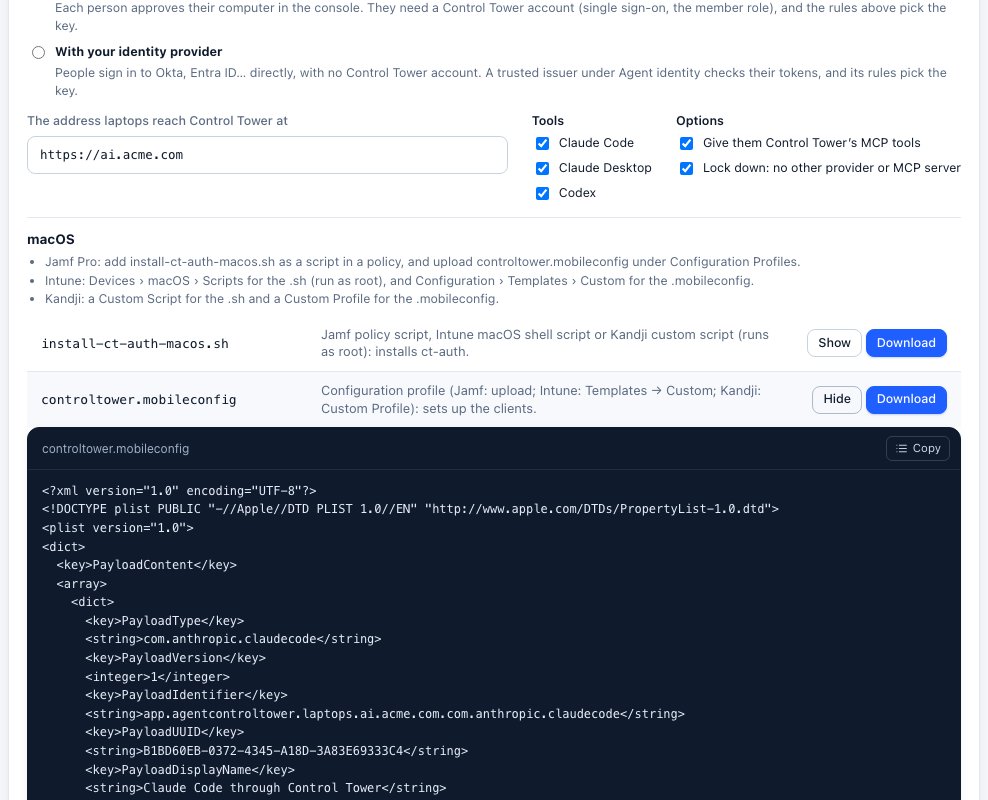
Under Laptops › Roll it out, enter the address and choose the tools. Two options:
- Give them Control Tower's MCP tools. Each tool gets Control Tower's
/mcpendpoint, behind the same sign-in: the MCP servers you've registered, filtered for the key. - Lock down. Stops each tool from using any other provider or MCP server (details below).
| Platform | File | How to deploy it |
|---|---|---|
| macOS | install-ct-auth-macos.sh | Jamf Pro: a script in a policy. Intune: Devices › macOS › Scripts (runs as root). Kandji: a Custom Script. Installs ct-auth, its configuration and Claude Code's managed-mcp.json |
| macOS | controltower.mobileconfig | Jamf Pro: Configuration Profiles › Upload. Intune: Configuration › Templates › Custom. Kandji: a Custom Profile. Sets up Claude Code (com.anthropic.claudecode), Claude Desktop (com.anthropic.claudefordesktop) and Codex (com.openai.codex) |
| Windows | install-controltower-windows.ps1 | Intune: Devices › Windows › Scripts. Run it as SYSTEM (not the signed-in user), in 64-bit PowerShell. Installs ct-auth to C:\Program Files\ControlTower and writes each tool's policy |
| Windows | controltower-windows.reg | Group Policy (registry preferences): Claude Code's and Claude Desktop's policy only. Install ct-auth separately |
| Linux | install-controltower-linux.sh | Run as root from your configuration management. Installs ct-auth and every tool's system settings under /etc |
| Any | claude-code/…, claude-desktop/…, codex/…, ct-auth, ct-auth.ps1 | The same settings as separate files, for your own packaging |
Downloading again gives the same profile identifiers, so MDM replaces a profile rather than adding a second one.
Claude Desktop needs a Claude model listed. It shows the Claude models Control Tower lists for the person's key (GET /v1/models), and doesn't start without one: it says "Configuration can't be used: Gateway returned no usable models". Models added on first use aren't listed until someone has used them, so add the Claude models you want under Models first. Laptops warns when a key Claude Desktop would use lists none.
5. What people see
The first time someone starts a tool, their browser opens at Connect your computer. They sign in, check the code, and approve:
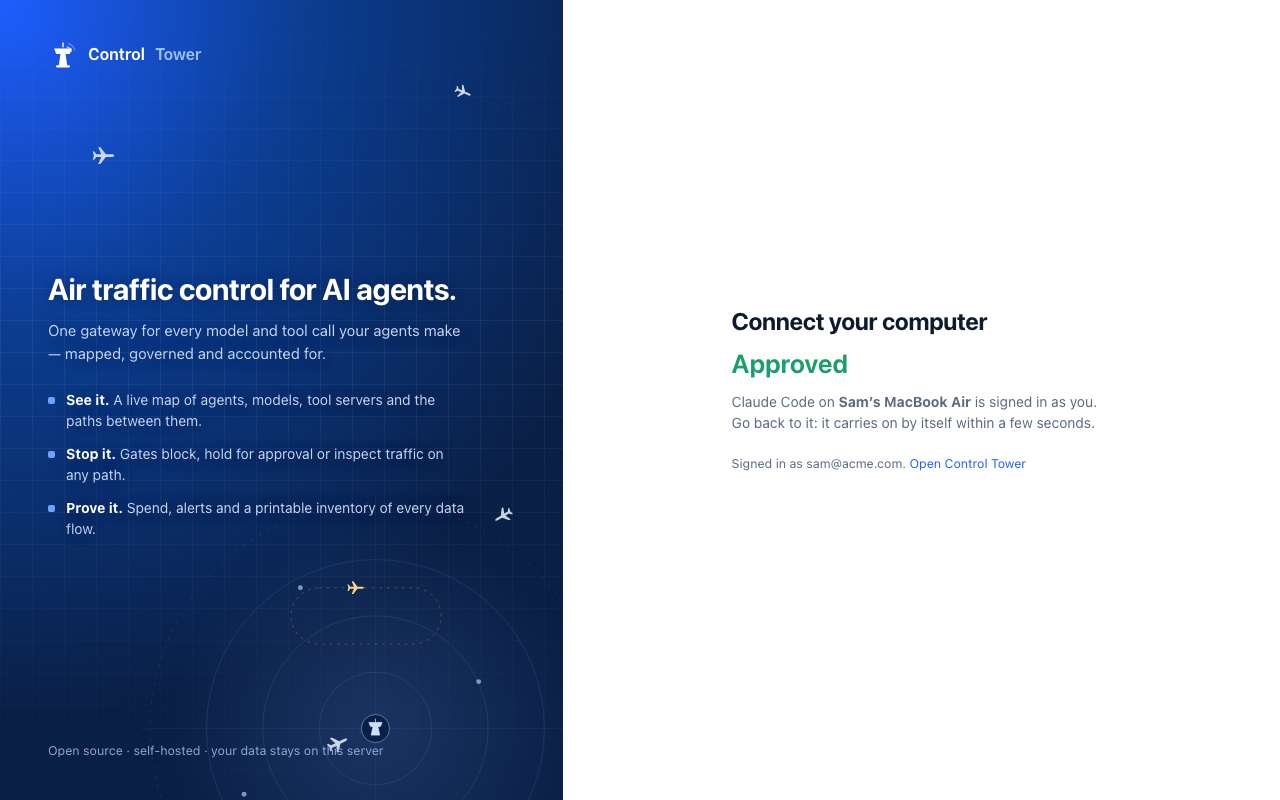
Claude Code and Codex wait for the approval and carry on. Claude Desktop runs ct-auth when it starts a session, and does the same.
What each tool enforces
| Tool | Through Control Tower | Its own sign-in | Other MCP servers |
|---|---|---|---|
| Claude Code | Managed ANTHROPIC_BASE_URL, which a shell variable can't override. With Lock down, allowedProviders: ["customEndpoint"] refuses any other destination (Claude Code 2.1.285 or later; earlier versions ignore it) | apiKeyHelper runs ct-auth | managed-mcp.json gives exactly Control Tower's endpoint. With Lock down, allowManagedMcpServersOnly too |
| Claude Desktop | inferenceProvider: gateway with Control Tower's address: a managed source wins over local settings | inferenceCredentialHelper runs ct-auth | managedMcpServers gives Control Tower's endpoint. With Lock down, user-added local servers and desktop extensions are turned off |
| Codex (CLI, IDE extension, app) | requirements.toml enforces model_provider = "controltower": users can't switch provider | auth.command runs ct-auth | managed_config.toml adds Control Tower's endpoint. With Lock down, requirements.toml allows only that one |
| Cursor | Not possible: Cursor's MDM policies have no setting for a gateway | — | Cursor's team dashboard has an MCP allowlist |
| GitHub Copilot CLI | COPILOT_PROVIDER_* variables, set machine-wide (Windows) or in a file every shell reads (macOS, Linux). With Lock down, COPILOT_OFFLINE=true: no GitHub sign-in, nothing but Control Tower. Variables are the only control Copilot CLI has: someone can unset them in their own shell | COPILOT_PROVIDER_API_KEY_COMMAND runs ct-auth | Not from the rollout: Copilot CLI's MCP settings can't run a sign-in helper. Give it Control Tower's endpoint with a key (GitHub Copilot) |
| VS Code + GitHub Copilot Chat | Control Tower's models are added as a Custom Endpoint, with a key per person (GitHub Copilot); GitHub-hosted models stay available unless your Copilot policies turn them off | — (a key per person) | VS Code's MCP policies (ChatAllowedMcpServers, ChatMCP) |
Managed settings stop someone using these tools any other way. They don't stop someone installing another tool, or calling a provider's API directly from their own code. That needs network controls: allow api.anthropic.com and api.openai.com only from Control Tower, at your proxy or firewall. See what is enforced.
Claude Desktop with your identity provider directly
Claude Desktop can also sign people in to your identity provider itself (inferenceGatewayOidc), without ct-auth. Register Claude Desktop as an app at your identity provider, then trust that issuer under Agent identity, with a rule mapping your people to a key. Calls are recorded under the token's email (set Who presented it to email). The difference is revocation: a token from your identity provider can't be ended before it expires, while signing out a computer here applies at once.
Day to day
Signed-in computers. Laptops lists every signed-in computer: whose it is, the tool, the computer's name and address, the key, and when it was last used. Each call from one carries the same: Flights shows by dana@acme.com in Claude Desktop on Dana's MacBook, and a held call's card in the Tower says who asked, in which tool, on which computer. Sign out ends a sign-in at once: its access token stops working, and the computer has to sign in again.
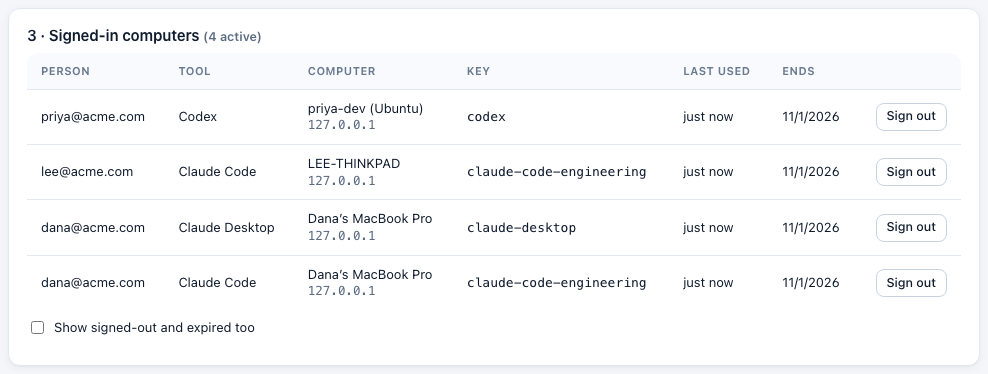
People see their own computers on Connect your computer, and can sign them out there. On the computer, ct-auth logout does the same.
People who leave. Removing someone from Control Tower signs out their computers at once. So does deactivating them at your identity provider, through SCIM, or moving them out of every group that gives a role.
How long sign-ins last. By default a computer signs in again after 90 days, or after 30 days unused. Change this under Laptops. Access tokens last an hour; CT_DEVICE_TOKEN_TTL_S sets another lifetime (5 minutes to a day).
Spend by person. The Ledger splits a shared key's spend between the people who used it:
ct-auth
| Command | |
|---|---|
ct-auth login --client <tool> | Sign in: opens the browser, waits for the approval |
ct-auth token --client <tool> | Print a current access token, refreshing it when needed. Signs in first if needed, unless no one is there to approve (see below) |
ct-auth header --client <tool> | Print {"Authorization": "Bearer …"}, for MCP clients. Never waits for a sign-in |
ct-auth status --client <tool> | Who this computer is signed in as, and the key |
ct-auth logout --client <tool> | Sign out here, and end the sign-in in Control Tower |
--client:claude-code,claude-desktop,codexorother. Each tool signs in separately, so one can be signed out without the others.Signing in with your identity provider:
idp_issuer=andidp_client_id=in the configuration file (orCT_IDP_ISSUERandCT_IDP_CLIENT_ID). Optional:idp_scope=(defaultopenid email profile offline_access), andidp_token=access_tokento send the access token instead of the ID token.logoutrevokes the refresh token at the identity provider when it offers revocation.The address:
--url, elseCT_URL, else the installed configuration file:- macOS:
/Library/Application Support/ControlTower/ct-auth.conf - Linux:
/etc/controltower/ct-auth.conf - Windows:
%ProgramData%\ControlTower\ct-auth.conf
The file holds one line,
url=https://…. Tools run their helpers with a bare environment (Codex passes onlyHOME,PATH,USERandTMPDIR), so a rollout relies on the file.- macOS:
Where tokens are kept:
- macOS: the login keychain (
Control Tower (<host>)). Values are written throughsecurity's own prompt, so they never appear on a command line. - Linux:
~/.config/controltower, readable only by the person. - Windows:
%LOCALAPPDATA%\ControlTower, encrypted for the person with DPAPI.
- macOS: the login keychain (
Nobody there to approve. When Claude Desktop runs ct-auth in the background (
CLAUDE_HELPER_CONTEXTother thaninteractive), or withCT_AUTH_NONINTERACTIVE=1, ct-auth doesn't open a browser. It says how to sign in, and exits.Offline. If Control Tower can't be reached, a token that hasn't expired yet is still printed.
ct-auth is a POSIX shell script (macOS and Linux, needing only curl) and a PowerShell script (Windows PowerShell 5.1 or PowerShell 7). Read it before you deploy it: Laptops shows every file in full.
API
The endpoints ct-auth calls:
| Method | Path | |
|---|---|---|
| POST | /device/code | client, device_name (form or JSON): starts a sign-in. Answers device_code, user_code, verification_uri, verification_uri_complete, expires_in (600), interval (5) |
| POST | /device/token | grant_type=urn:ietf:params:oauth:grant-type:device_code with device_code, or grant_type=refresh_token with refresh_token. Answers access_token, token_type, expires_in, key_name, person, and once refresh_token. Errors follow RFC 8628: authorization_pending, slow_down, access_denied, expired_token, invalid_grant |
| POST | /device/revoke | token (a refresh token): signs that computer out |
| GET | /device/ct-auth.sh, /device/ct-auth.ps1 | The helper |
The console's endpoints:
| Method | Path | |
|---|---|---|
| GET | /admin/api/me/devices/pending?code= | A sign-in waiting for the person: the tool, the computer, where it came from, and the key (or why none) |
| POST | /admin/api/me/devices/approve | {user_code, approve}: the person approves or refuses |
| GET | /admin/api/me/devices | The person's own computers |
| DELETE | /admin/api/me/devices/:id | The person signs one out |
| GET | /admin/api/devices | Admins: every computer, the rules, the settings |
| DELETE | /admin/api/devices/:id | Admins: sign a computer out |
| PUT | /admin/api/devices/rules | Admins: {rules: [{client, team_id, key_id}]}, in order |
| PUT | /admin/api/devices/settings | Admins: {session_days, idle_days} |
| GET | /admin/api/devices/rollout?url=&clients=&mcp=&lockdown= | Admins: the rollout files |
| GET | /admin/api/ledger/people?window= | Spend by person |
The audit log records approvals (devices.approve), sign-ins (devices.sign_in), sign-outs (devices.revoke, devices.sign_out) and rule changes.
Limits
- Laptops sign in to the control plane (or any instance sharing its database). In a multi-region deployment, point them at the control plane.
- A refresh token is a long-lived credential on the computer, protected as described above. Signing out, or removing the person, ends it at once.
- Without a license, or once one ends after its grace period, laptop tokens are refused and the tools stop working until a license is added. Gateway traffic with keys carries on.